Дауншифтър Блог | Thracium.net
  • Начало
  • Подкаст
    • Подкаст
      • Изкуствен Интелект
    • Загадъчни Истории
  • Контакти

Test, Review, HOWTO

Xiaomi 13 Ultra BLOATWARE clean MIUI CN ROM

Xiaomi 13 Ultra BLOATWARE clean MIUI CN ROM

Test, Review, HOWTO 29 January 2024 0 minutes read

This is a step by step HOWTO Clean you Xiaomi CN ROM from all of the MIUI Bloatware.

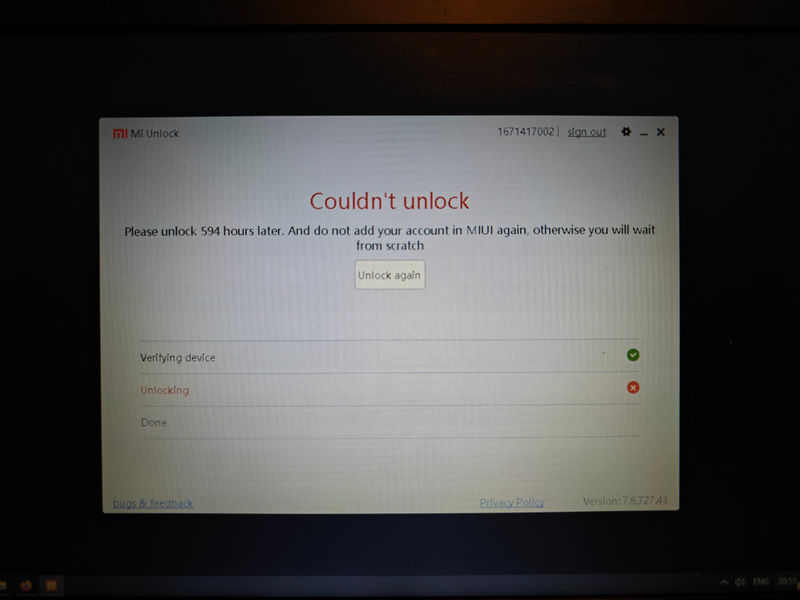
As I explained already in my previous Xiaomi 13 Ultra HOWTOs I received 594 hours wait time in order my bootloader to be unlocked.Xiaomi BLOATWARE clean thracium.net 05 1024
Because of that almost a month I'm forced to use the default MIUI CN ROM.

This is almost impossible task if you keep on your phone running all the MIUI Bloatware and crap which comes preinstalled with the default China ROM.

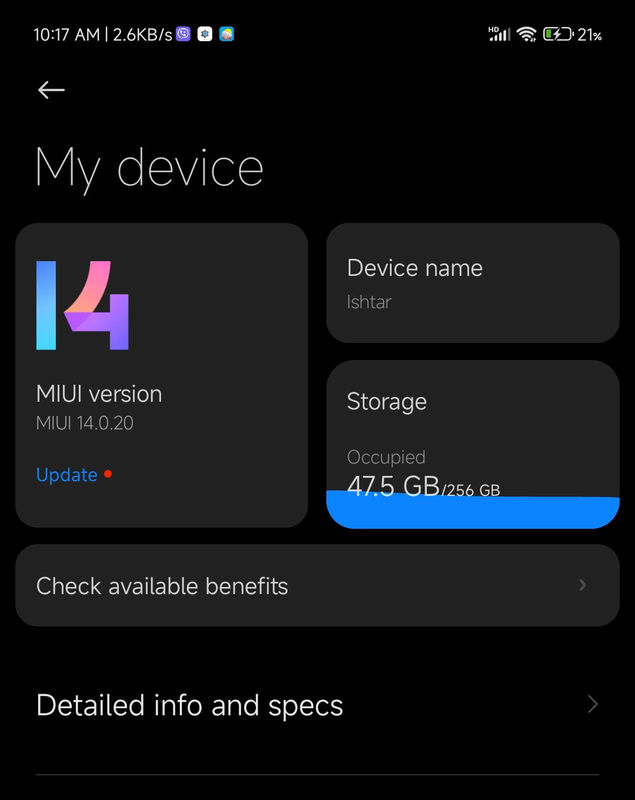
At the moment I'm using the latest version of MIUI available:  MIUI 14.0.20

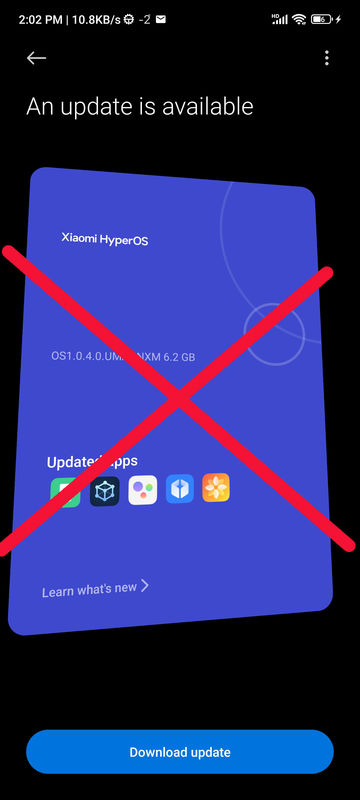
And YES, I'm not upgrading to HyperOS because my bootloader is locked.

If you make the mistake to upgrade you will have a lot of serious problems when decide to unlock your bootloader.

Anybody can clean it's own phone from all the MIUI Bloatware and crap without unlock and no root.

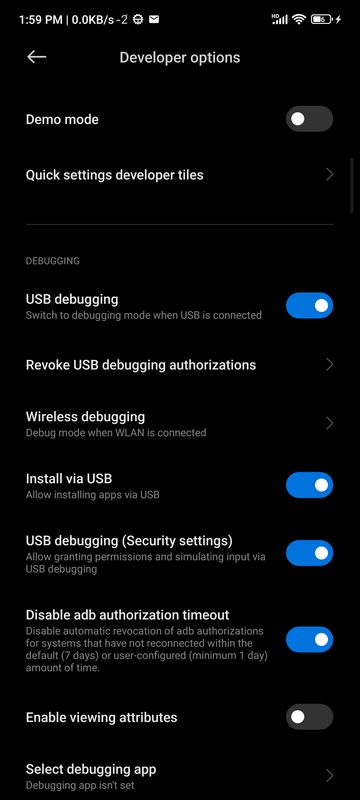
In order to do that you have to enable Developer Options, USB debug and Install via USB from the Settings menu of your phone.

Step by step instructions how to do it you can find in my HOWTO here: Replace MIUI Launcher with Nova Launcher & Gestures on Xiaomi CN ROM

After that you have to install adb and fastboot.

If you are windows user fallow this guide: How to Install ADB & Fastboot drivers on PC

If you are using Linux then install adb and fastboot available for your distro.

I have created Windows and Linux a scripts for full MIUI CN bloatware uninstall.Xiaomi BLOATWARE clean thracium.net 04 1024
Also I'm providing a script which you can use if you want to restore all the programs to the its original state.

Full MIUI clean up

Using the scripts bellow I'm cleaning almost ALL of the MIUI CN bloatware.

Also the script is disabling some of the System apps.

Be aware that using the REinstall script all the uninstalled and the disabled apps will be restored.

At the beginning of each script as a comment I have mentioned few very important apps which have to be left intact.

If you unistall or disable some of them you will receive a soft bricked device in a BOOT LOOP ...

I'm sharing the list of the apps which I personally uninstalled and disabled and the system is working with no any problems.

Important Disclaimer:

Please be aware that this guide is a sharing of personal experience and a solution that has been tested and works for me. Keep in mind that I am in no way responsible if you decide to use the personal experience I have shared and something goes wrong on your end. You, and you alone, are responsible for everything you do with your phone.

Bellow are the scripts for MIUI CN bloatware uninstall / reinstall on Linux:Xiaomi BLOATWARE clean thracium.net 03 1024

MIUI Bloatware Clean:

rc.xiaomi-13-ultra-bloatware-UNinstall.sh

MIUI Bloatware Restore:

rc.xiaomi-13-ultra-bloatware-REinstall.sh

Bellow are the scripts for MIUI CN bloatware uninstall / reinstall on Windows:

MIUI Bloatware Clean:

rc.xiaomi-13-ultra-bloatware-UNinstall.bat

MIUI Bloatware Restore:

rc.xiaomi-13-ultra-bloatware-REinstall.bat

Bellow you can find a full list of all the MIUI Bloatware and crap I'm cleaning from my Xiaomi 13 Ultra MIUI CN 14.0.20

#!/bin/bash

##DO NOT UNINSTALL:
#com.miui.securitycenter
#com.miui.securityadd
#com.xiaomi.finddevice

##BOOT LOOP if uninstalled:
#com.google.android.ext.shared
#com.google.android.ext.services

##NOT UNINSTALLED:
#com.android.stk
#com.android.mms
#com.android.mms.service
#com.android.wallpaper.livepicker
#com.android.wallpaperbackup
#com.android.wallpapercropper
#com.mi.android.globallauncher
#com.miui.screenrecorder
#com.miui.securityinputmethod
#com.miui.system
#com.miui.miwallpaper
#com.xiaomi.account
#com.xiaomi.bluetooth
#com.xiaomi.cameratools
#com.xiaomi.mirecycle
#com.xiaomi.misettings

#ANDROID
adb shell pm uninstall -k --user 0 com.android.bips
adb shell pm uninstall -k --user 0 com.android.browser
adb shell pm uninstall -k --user 0 com.android.calendar
adb shell pm uninstall -k --user 0 com.android.cellbroadcastreceiver
adb shell pm uninstall -k --user 0 com.android.cellbroadcastreceiver.overlay.common
adb shell pm uninstall -k --user 0 com.android.dreams.basic
adb shell pm uninstall -k --user 0 com.android.emergency
adb shell pm uninstall -k --user 0 com.android.printspooler
adb shell pm uninstall -k --user 0 com.android.statementservice

#Google
adb shell pm uninstall -k --user 0 com.google.android.cellbroadcastreceiver.overlay.miui
adb shell pm uninstall -k --user 0 com.google.android.configupdater
adb shell pm uninstall -k --user 0 com.google.android.gms.location.history
adb shell pm uninstall -k --user 0 com.google.android.marvin.talkback
adb shell pm uninstall -k --user 0 com.google.android.onetimeinitializer
adb shell pm uninstall -k --user 0 com.google.android.overlay.modules.ext.services.cn
adb shell pm uninstall -k --user 0 com.google.android.printservice.recommendation

#MIUI
adb shell pm uninstall -k --user 0 com.miui.aod
adb shell pm uninstall -k --user 0 com.miui.analytics
adb shell pm uninstall -k --user 0 com.miui.audioeffect
adb shell pm uninstall -k --user 0 com.miui.audiomonitor
adb shell pm uninstall -k --user 0 com.miui.backup
adb shell pm uninstall -k --user 0 com.miui.bugreport
adb shell pm uninstall -k --user 0 com.miui.carlink
adb shell pm uninstall -k --user 0 com.miui.cit
adb shell pm uninstall -k --user 0 com.miui.cloudbackup
adb shell pm uninstall -k --user 0 com.miui.cloudservice
adb shell pm uninstall -k --user 0 com.miui.contentcatcher
adb shell pm uninstall -k --user 0 com.miui.daemon
adb shell pm uninstall -k --user 0 com.miui.extraphoto
adb shell pm uninstall -k --user 0 com.miui.fm
adb shell pm uninstall -k --user 0 com.miui.freeform
adb shell pm uninstall -k --user 0 com.miui.greenguard
adb shell pm uninstall -k --user 0 com.miui.health
adb shell pm uninstall -k --user 0 com.miui.huanji
adb shell pm uninstall -k --user 0 com.miui.hybrid
adb shell pm uninstall -k --user 0 com.miui.maintenancemode
adb shell pm uninstall -k --user 0 com.miui.micloudsync
adb shell pm uninstall -k --user 0 com.miui.miservice
adb shell pm uninstall -k --user 0 com.miui.mishare.connectivity
adb shell pm uninstall -k --user 0 com.miui.misound
adb shell pm uninstall -k --user 0 com.miui.newmidrive
adb shell pm uninstall -k --user 0 com.miui.nextpay
adb shell pm uninstall -k --user 0 com.miui.personalassistant
adb shell pm uninstall -k --user 0 com.miui.phrase
adb shell pm uninstall -k --user 0 com.miui.player
adb shell pm uninstall -k --user 0 com.miui.qr
adb shell pm uninstall -k --user 0 com.miui.systemAdSolution
adb shell pm uninstall -k --user 0 com.miui.systemui.carriers.overlay
adb shell pm uninstall -k --user 0 com.miui.touchassistant
adb shell pm uninstall -k --user 0 com.miui.translation.kingsoft
adb shell pm uninstall -k --user 0 com.miui.translation.xmcloud
adb shell pm uninstall -k --user 0 com.miui.translationservice
adb shell pm uninstall -k --user 0 com.miui.voiceassist
adb shell pm uninstall -k --user 0 com.miui.voiceassistoverlay
adb shell pm uninstall -k --user 0 com.miui.voicetrigger
adb shell pm uninstall -k --user 0 com.miui.vsimcore
adb shell pm uninstall -k --user 0 com.miui.weather2
adb shell pm uninstall -k --user 0 com.miui.wmsvc
adb shell pm uninstall -k --user 0 com.miui.yellowpage

#OTHER
adb shell pm uninstall -k --user 0 com.achievo.vipshop
adb shell pm uninstall -k --user 0 com.autonavi.minimap
adb shell pm uninstall -k --user 0 com.baidu.input_mi
adb shell pm uninstall -k --user 0 com.baidu.searchbox
adb shell pm uninstall -k --user 0 com.bsp.catchlog
adb shell pm uninstall -k --user 0 com.dragon.read
adb shell pm uninstall -k --user 0 com.duokan.phone.remotecontroller
adb shell pm uninstall -k --user 0 com.eg.android.AlipayGphone
adb shell pm uninstall -k --user 0 com.iflytek.inputmethod.miui
adb shell pm uninstall -k --user 0 com.milink.service
adb shell pm uninstall -k --user 0 com.mobiletools.systemhelper
adb shell pm uninstall -k --user 0 com.mipay.wallet
adb shell pm uninstall -k --user 0 com.mipay.android.manager
adb shell pm uninstall -k --user 0 com.Qunar
adb shell pm uninstall -k --user 0 com.sina.weibo
adb shell pm uninstall -k --user 0 com.smile.gifmaker
adb shell pm uninstall -k --user 0 com.sohu.inputmethod.sogou.xiaomi
adb shell pm uninstall -k --user 0 com.ss.android.article.news
adb shell pm uninstall -k --user 0 com.ss.android.ugc.aweme
adb shell pm uninstall -k --user 0 com.tencent.soter.soterserver
adb shell pm uninstall -k --user 0 com.UCMobile
adb shell pm uninstall -k --user 0 com.xiaomi.vipaccount
adb shell pm uninstall -k --user 0 com.ximalaya.ting.android
adb shell pm uninstall -k --user 0 com.xingin.xhs
adb shell pm uninstall -k --user 0 com.xunmeng.pinduoduo
adb shell pm uninstall -k --user 0 com.youku.phone
adb shell pm uninstall -k --user 0 com.zhihu.android
adb shell pm uninstall -k --user 0 cn.wps.moffice_eng.xiaomi.lite
adb shell pm uninstall -k --user 0 ctrip.android.view
adb shell pm uninstall -k --user 0 tv.danmaku.bili
adb shell pm uninstall -k --user 0 com.qxr.feed

##qualcomm
adb shell pm uninstall -k --user 0 com.qti.qcc
adb shell pm uninstall -k --user 0 com.qualcomm.uimremoteserver

#XIAOMI
adb shell pm uninstall -k --user 0 com.xiaomi.aiasst.service
adb shell pm uninstall -k --user 0 com.xiaomi.aiasst.vision
adb shell pm uninstall -k --user 0 com.xiaomi.gamecenter.sdk.service
adb shell pm uninstall -k --user 0 com.xiaomi.gnss.polaris
adb shell pm uninstall -k --user 0 com.xiaomi.joyose
adb shell pm uninstall -k --user 0 com.xiaomi.location.fused
adb shell pm uninstall -k --user 0 com.xiaomi.mibrain.speech
adb shell pm uninstall -k --user 0 com.xiaomi.mi_connect_service
adb shell pm uninstall -k --user 0 com.xiaomi.micloud.sdk
adb shell pm uninstall -k --user 0 com.xiaomi.migameservice
adb shell pm uninstall -k --user 0 com.xiaomi.mirror
adb shell pm uninstall -k --user 0 com.xiaomi.payment
adb shell pm uninstall -k --user 0 com.xiaomi.simactivate.service
adb shell pm uninstall -k --user 0 com.xiaomi.smarthome
adb shell pm uninstall -k --user 0 com.xiaomi.xmsf
adb shell pm uninstall -k --user 0 com.xiaomi.xmsfkeeper
adb shell pm uninstall -k --user 0 com.xiaomi.youpin

#DISABLE some unused System apps
adb shell pm disable-user --user 0 com.android.soundrecorder
adb shell pm disable-user --user 0 com.android.email
adb shell pm disable-user --user 0 com.miui.calculator
adb shell pm disable-user --user 0 com.miui.compass
adb shell pm disable-user --user 0 com.miui.notes
adb shell pm disable-user --user 0 com.miui.video
adb shell pm disable-user --user 0 com.miui.virtualsim
adb shell pm disable-user --user 0 com.mfashiongallery.emag
adb shell pm disable-user --user 0 com.xiaomi.gamecenter
adb shell pm disable-user --user 0 com.xiaomi.scanner
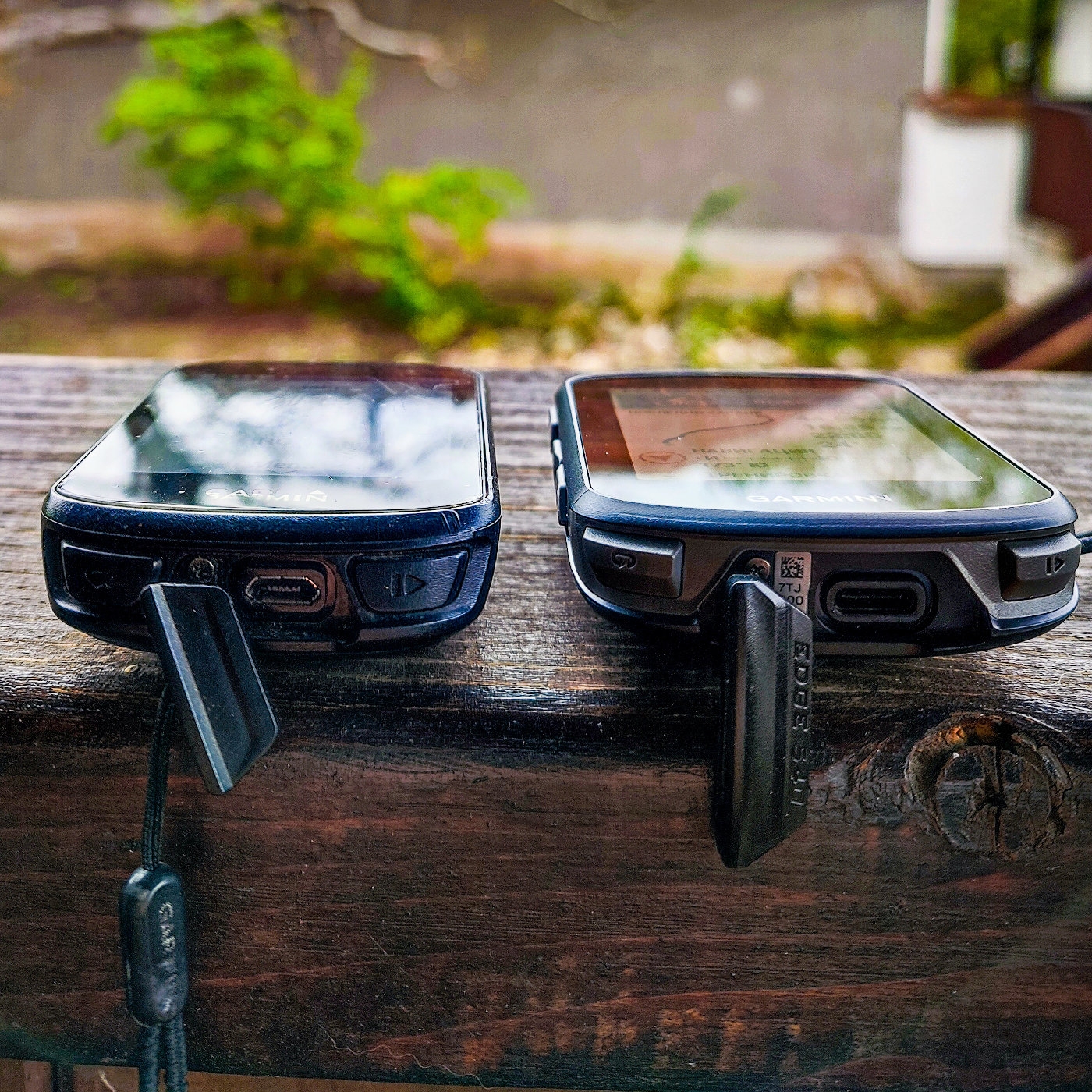
The New Garmin Edge 540 and 840. Does it make sense to upgrade from 530?

The New Garmin Edge 540 and 840. Does it make sense to upgrade from 530?

Test, Review, HOWTO 04 November 2023 16 minutes read
  • garmin
  • garmin edge
  • gps garmin
  • connect garmin
  • garmin edge 530
  • garmin edge 1040
  • garmin edge 540
  • garmin edge 840
  • garmin connect
  • garmin edge 130
  • ClimbPro
  • podcast
  • lupo's podcast

The long-awaited Garmin Edge 540 is finally available Worldwide!

Ever since information about the new Garmin Edge 540 / 540 Solar / Edge 840 and the 840 Solar version of the bicycle computers was leaked on the Internet at the beginning of the month, I have been reading many posts with information about the parameters and capabilities of each of the four new models.

On April 11, as expected, Garmin officially announced the launch of the four new additions to the Edge series.

I have watched dozens of video reviews and read overviews dedicated to the four new Garmin Edge bike computers.

I've watched dozens of videos on YouTube with detailed analysis of the parameters and differences between each one of them.

All that time, I've been asking myself the following IMPORTANT question:

- Is it worth upgrading from the iconic Edge 530 to the new (more expensive) Edge 540 or Edge 840?

My answer now, after tinkering and testing the newly arrived Garmin Edge 540 for a few hours is:

- Oh, YES!!! ... The new Edge 540 is simply amazing! :)

Replace MIUI Launcher with Nova Launcher & Gestures on Xiaomi CN ROM

Replace MIUI Launcher with Nova Launcher & Gestures on Xiaomi CN ROM

Test, Review, HOWTO 27 January 2024 0 minutes read

In this HOWTO I explain how to replace the boring MIUI Launcher on any Xiaomi phone flashed with CN ROM and how to use Nova Launcher + Gestures Navigation on MIUI ROM.

The solution described below has been personally tested by me and works perfectly on a Xiaomi 13 Ultra (CN) phone purchased from China with the latest version of MIUI 14.0.2001 default nova launcher 01

I don't know if this solution works if you have a Xiaomi phone from China with the new HyperOS installed, instead of MIUI... as of the current moment, I'm still waiting for my phone's bootloader to be unlocked (bootloader unlock) hence I CANNOT install the new HyperOS.

As I described in the guide "if Xiaomi 13 Ultra CN, then DON'T do THIS:" IF you make the mistake of installing the new Xiaomi HyperOS on a phone with a locked bootloader, you will NOT be able to easily unlock it afterward and will not be able to install the Global ROM with support for other languages and WITHOUT the restriction to change the default MIUI Launcher.

And so, right here we get to the crux of the problem.

For more than 4 years, ever since MIUI version 10, Xiaomi officially blocks the ability of all users of Xiaomi phones (CN) produced for the China region to use a Launcher of the phone owner's choice on their personal phone.03 my device 01

Really? ... WOW! ... This is China, and we all play along and do what the party and Xiaomi command! :) ;) :)

Unfortunately, around the world, owners of Xiaomi phones (produced for the China region) with a locked bootloader are forced to comply with these directives...

"Third-party launchers are allowed on China ROM-based Xiaomi smartphones after a verification process. Any launcher that is approved to be listed on the Mi App Store (our app marketplace in Chinese Mainland) will be automatically verified, and can be used on MIUI smartphones running the China ROM. There are no plans to implement a verification process for launchers on the global (including India) firmware."

In principle, according to the statement above, you should be able to set Microsoft Launcher installed from the Xiaomi app store as the default, but I personally tried it and it did NOT allow me to set it as the default on the phone.

Another limitation, deliberately introduced by Xiaomi, is that you cannot use the convenient Gestures for navigation on the phone with any Launcher other than theirs...

Yes, another trap from Xiaomi.

This rule applies to all users of their operating system, whether it's on Global or CN ROM.

Even if you use a phone with MIUI Global ROM and set Nova Launcher as the default on your phone, you cannot use Gestures for finger navigation on the phone screen.01 gestures 01

If you still have the audacity to want to use a preferred Launcher on your personal phone, then you must resign yourself to using the morally outdated navigation with 3 buttons at the bottom of the screen.

Ha, ha, ha...

Actually, it's NOT funny, it's TRAGIC and extremely irritating!

So let's get back to the guide on how NOT to be a victim of these restrictions!

Changing the MIUI Launcher on a Xiaomi 13 Ultra Phone

As I described in the guide "Ordering a Xiaomi from CHINA? Do NOT make these mistakes:" it turns out that I have to wait 25 days before I get permission from Xiaomi to unlock the bootloader of my Xiaomi 13 Ultra.01 nova launcher interface

25 extremely annoying days, during which Xiaomi forces me to use their operating system and their extremely WOODEN and morally outdated product called MIUI Launcher.

Another LIMITATION imposed by Xiaomi, which you should keep in mind, is that you CANNOT install applications on your phone with a lower version than those already installed on the phone... :(

Version 4.23.0.3275 of MIUI Launcher

I came across a guide on the Internet to deal with this super irritating problem faced by tens of thousands of Xiaomi users.

Unfortunately, today I can't find the link to that original solution.

In the guide, the author suggested installing version 4.23.0.3275 of the MIUI Launcher on your phone:Screenshot 2024 01 23 14 02 08 002 com.android.updater 01

com.miui.home_ALPHA-4.23.0.3275

According to the author of this guide, specifically this version 4.23.0.3275 of the MIUI Launcher allows you to set another alternative Launcher on your CN ROM phone.

I personally FAILED to install this version of the program, as the version of com.miui.home on my phone was higher.

However, if you have an older version of the operating system on your Xioami phone, I hope this solution works for you! :)

Good luck! :)

MIUI Launcher for HyperOS

So, after this latest attempt and disappointment, I decided to search for and install the latest version of the MIUI Launcher made for Xiaomi's "new" operating system HyperOS :)01 miui launcher hyperos

I hoped that the newer versions wouldn't be as wooden and annoying! :)

INFO: The MIUI Launcher for HyperOS is absolutely the same wooden thing as on the MIUI OS...

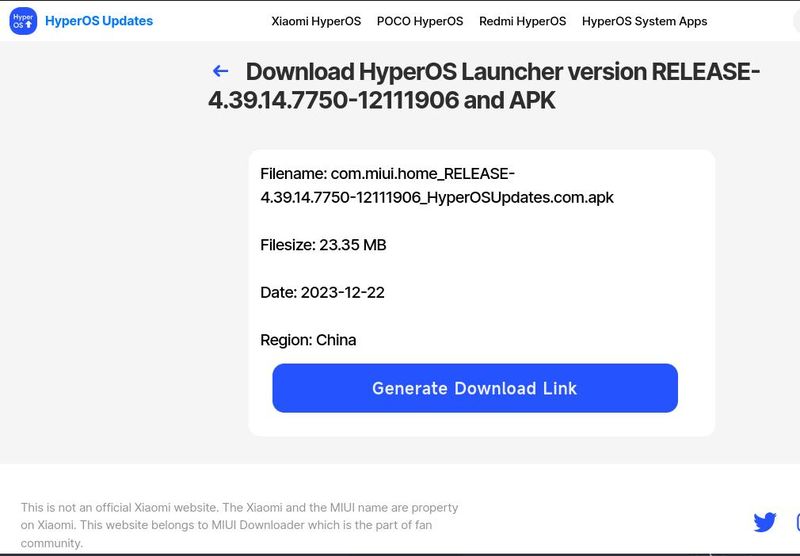
So, in search of a newer version of the MIUI Launcher for HyperOS, I came across the website hyperosupdates.com.

From there I downloaded com.miui.home_RELEASE-4.39.14.7750-12111906_HyperOSUpdates.com.apk

This is the link to the program if you want to download it directly from the hyperosupdates.com website: https://hyperosupdates.com/apps/com.miui.home/439147750/

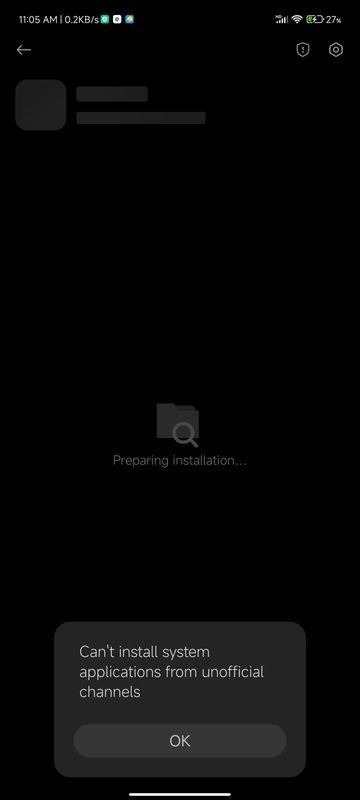
Can't install system applications  from unofficial channels01 unofficial channel

I downloaded the program to my phone  and encountered another limitation from Xiaomi:

"Can't install system applications  from unofficial channels"

Apparently, I'm not allowed to install system applications on my personal phone from unofficial channels... yeah right

Clear! We all around the world must march and follow the commands of the party and Xiaomi!

Yes... I get it! :)

Fortunately, for those who love freedom, there IS a solution to this annoying problem and yet another restriction! :)04 detayled info

Activating Developer Options on the Phone

The solution is to activate Developer Options on the phone.

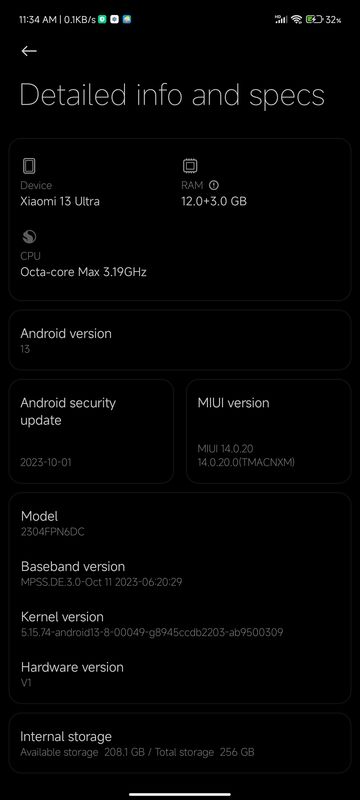
You can do this easily by going to Settings / My Device / Detailed info and specs

In this submenu, click 7 times on MIUI version.

Then in Settings / Additional settings / Developer options, activate the USB Debugging and Install via USB settings.

I also recommend that while you are in this menu, you activate USB Debugging (Security settings) and Disable adb authorization timeout.05 developer options 01

In this menu, DEactivate the settings: Verify apps over USB and Verify bytecode of debuggable apps

Then you need to install ADB and Fastboot tools on your computer.

Detailed step-by-step instructions on how to install ADB and Fastboot tools for Linux or Windows can be found in the guide here:

Using ADB and fastboot

After activating the above USB Debug options and installing ADB and Fastboot tools on your computer, you now have much greater control over your phone!

Congratulations!

You can now use ADB commands to install and uninstall programs on your phone via computer.

Copy the MIUI launcher version com.miui.home_RELEASE-4.39.14.7750-12111906_HyperOSUpdates.com.apk to one of the main folders on your computer, open a terminal, go to this folder, and start the command:

adb install com.miui.home_RELEASE-4.39.14.7750-12111906_HyperOSUpdates.com.apk01 default nova launcher 01

Congratulations!

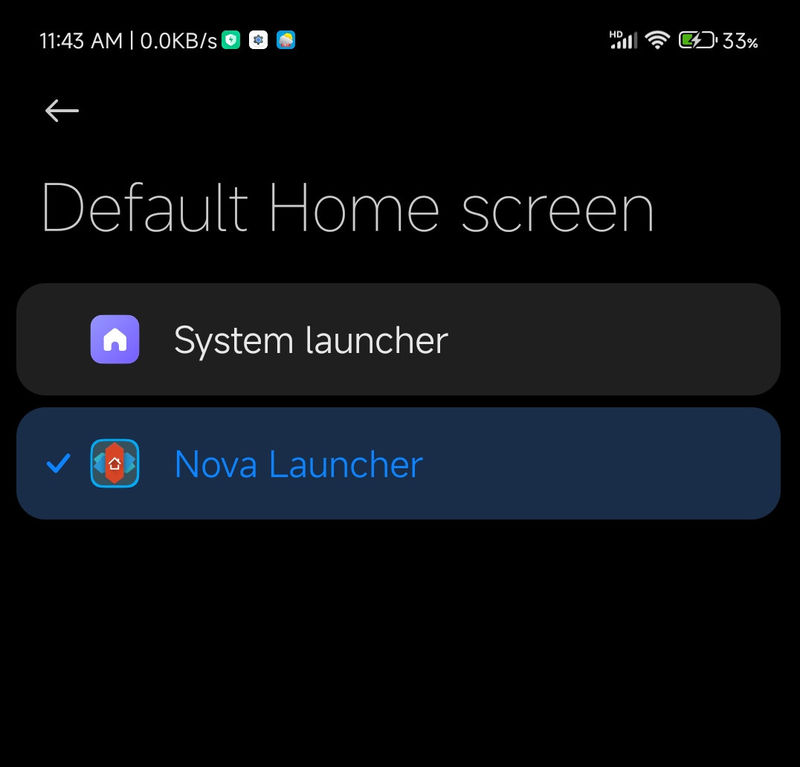
You have just installed, just like me, a version of the MIUI launcher for HyperOS, which ALLOWS you to set Nova Launcher or another program!

You can easily do this from the menu Settings / Apps / Manage Apps.

Here click on the 3 dots at the top right and select Default Apps / Launcher.

From this menu, choose the Launcher you have installed and want to use by default for your phone.

No more annoying refusal message! Hooray! :)

If you prefer to use the three buttons at the bottom of the screen for navigation on your phone, then at this point everything is ready and you can stop reading this guide here.

However, if you prefer Gestures Navigation for navigation, you will need to do a few more things... :)

Gestures Navigation with Nova Launcher for MIUI Phones

The next problem we encounter on phones with the MIUI version of Android is that here, specifically for this manufacturer, Gestures Navigation is developed solely as part of the MIUI Launcher.

Accordingly, if you do not want to use the MIUI Launcher, you will not have Gestures Navigation... :)07 my gesture 01

Fortunately, there is a solution to this super annoying limitation imposed by Xiaomi.

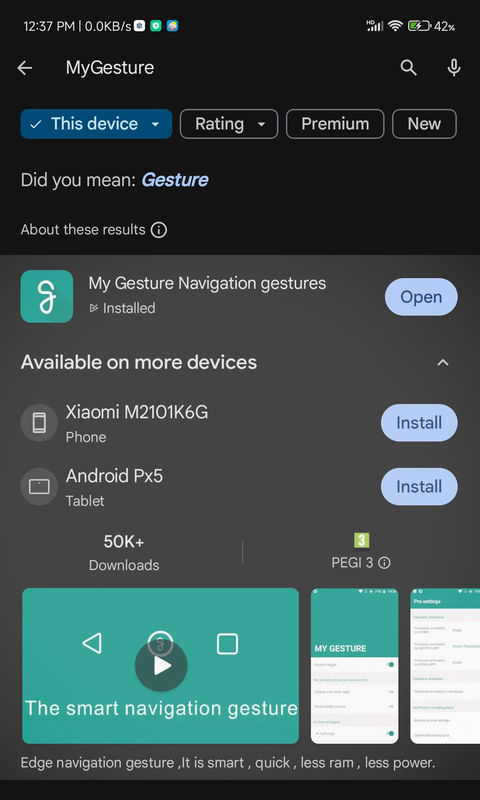
I personally installed the MyGesture app from Google Play.

If for some reason Google Play does not allow you to install it, you can download and install it from the link here: MyGesture

Install the app, allow access to "Display over other apps" and "Accessibility services".

In the battery optimization settings, TURN OFF restrictions for the MyGesture app and that's it!

You now have full-fledged navigation with Gestures Navigation and finally can use your favorite Nova Launcher on your Xiaomi (CN) phone produced for the China region!

Hiding the Navigation Menu at the Bottom of the Screen

Actually, there's one last step left, we need to find a way to hide the now unnecessary navigation bar with buttons at the bottom of the phone screen.

As of my current research on the Internet, this can only be done through the use of ADB Tools via a computer.

To hide the navigation bar, run the following command from your computer:

adb shell settings put global force_fsg_nav_bar 110 full screen indicator 01

If this command does not hide the navigation bar, try this:

adb shell settings put global force_fsg_nav_bar 0

Keep in mind that after restarting the phone, the button bar will appear again.

To remove it, you will need to run the ADB command again:

adb shell settings put global force_fsg_nav_bar 1

Lastly: Hiding the Full Screen Navigation Indicator

If there is still a thin glowing line at the bottom of your screen, that's the "Full screen navigation" indicator.

You can easily hide it by going into:00 nova launcher 01

Settings / Home Screen / System navigation. Here, click on Hide full screen indicator

That's all, friends!

Finally, you are using a Launcher of your choice WITHOUT the super annoying limitations imposed by MIUI and Xiaomi, and with Gestures Navigation on your own Android phone!

Congratulations!

MIUICamera Leica for AOSP ROMs like Lineage OS

MIUICamera Leica for AOSP ROMs like Lineage OS

Test, Review, HOWTO 03 November 2023 6 minutes read
  • podcast
  • lupo's podcast

I have spend the last few weeks testing and experimenting with many different MiuiCamera Leica Mods with the main focus on the Android Opensource Project (AOSP) based ROMs like the famous Lineage OS.

At the moment I have build and I'm using my first custom Android ROM which is based on Lineage OS version 20 with a custom build kernel: Lupo-kernel which I have configured and compiled strongly focused on the super endurance battery life with good overall phone performance.

More details about the custom ROM Lineage-OS UNOFFICIAL version and the Linux kernel I use I'll write in a next Blog posts.

This post is focused on the latest MiuiCamera Leica Mods available at the moment: version 4.9 and version 5.0

In general the famous Lineage OS OFFICIAL come with a vague semblance of a photo program that is far beyond the capabilities of the Redmi Note 10 Pro Camera full hardware capabilities and potential.

If you are Inspired of the Mobile Photography and you are using a good Camera phone produced from Xiaomi like Redmi Note 10 Pro you definitely have to use together the MiuiCamera (Leica) AND the best Google Camera Mod (GCam) available at the moment which definitely is GCam LMC 8.4 Camera Mod from Hasli.

if Xiaomi 13 Ultra CN, then DON'T do THIS:

if Xiaomi 13 Ultra CN, then DON'T do THIS:

Test, Review, HOWTO 22 January 2024 0 minutes read

OK, I see ... probably you (like me) have ordered a CN version of this great Camera phone Xiaomi 13 Ultra and you like me intend to use it outside China?

Actually there is NOTHING Wrong to do all that and you will SAVE several hundred euros / dollars this way ...xiaomi 13 ultra 02

BUT there are few important things which u have to keep in your mind buying this NOT cheap Camera phone from China and use it outside China.

I'm writhing this article on my Blog partly on my Xiaomi 13 Ultra CN version in Europe.

OK let's dive directly in to the deep:

1. Order UNLOCKED Xiaomi 13 Ultra

Your BEST option is to order already UNLOCKED Xiaomi 13 Ultra from the Chinese seller

This way u can receive it with GLOBAL ROM which Global ROM have full language support AND will not have some very annoying limitations of the CN ROM.xiaomi 13 ultra 04

If you order your phone from Aliexpress u have to wait a week for the phone bootloader to be unlocked from the seller and the Global ROM to be installed on your CN hardware.

1.1 Please notify the seller to send you the phone NOT locked!

In the Xiaomi 13 Ultra XDA forum there are already a post from a colleague with CN phone flashed from the seller with a Global ROM and ... locked boot loader ...

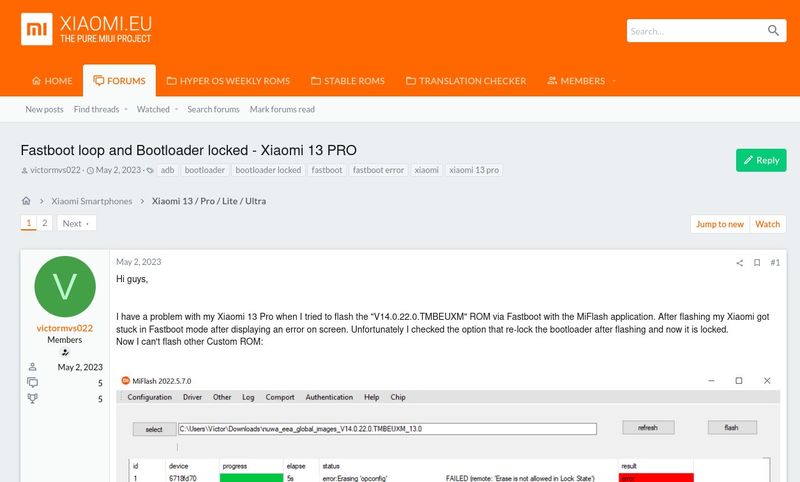
You can read about this phenomenon here:  U will BRICK a CN Xiaomi 13 Ultra flashed with a GLOBAL ROM if you u LOCK it back!

After receiving you fancy Camera phone, please don't ever forget that still u own a CN phone despite the Global ROM u are using!

Do NOT forget that fact or you CAN easily BRICK your PHONE ... read the details bellow.

​2. I will unlock the bootloader by myself! :)

If you (like me) at some moment decide that you have a lot of experience with Android phones (and Xiaomi phones) and you don't need to wait this extra week for the seller to unlock the boot loader, but you decide to do all that by your self at home be aware of some very serious risks and problems:Screenshot 2024 01 23 14 02 01 498 com.android.settings

2.1. Order CN phone with MIUI ROM not Hyper OS

Be 100% sure that the seller will send you a phone with MIUI ROM and NOT the new Hyper OS!

If the seller send you Xiaomi 13 Ultra CN version with Hyper OS preinstalled it will be almost NOT possible for you from Europe to UNLOCK the bootloader of your phone!

This is because of the new bootloader unlock policy of Xiaomi for the CN based phones (region CN) with Hyper OS!

 At the moment there is a hack which could help u to unlock you bootloader with with a phone flashed with Hyper OS, but the hack is NOT working for all phones!

More info about this possible solution to unlock your Hyper OS bootloader you can find here: Xiaomi HyperOS BootLoader BypassScreenshot 2024 01 23 13 58 56 566 com.android.settings 01

You can visit also this thread in the Xiaomi 13 Ultra XDA forum:  Issue unlocking the bootloader

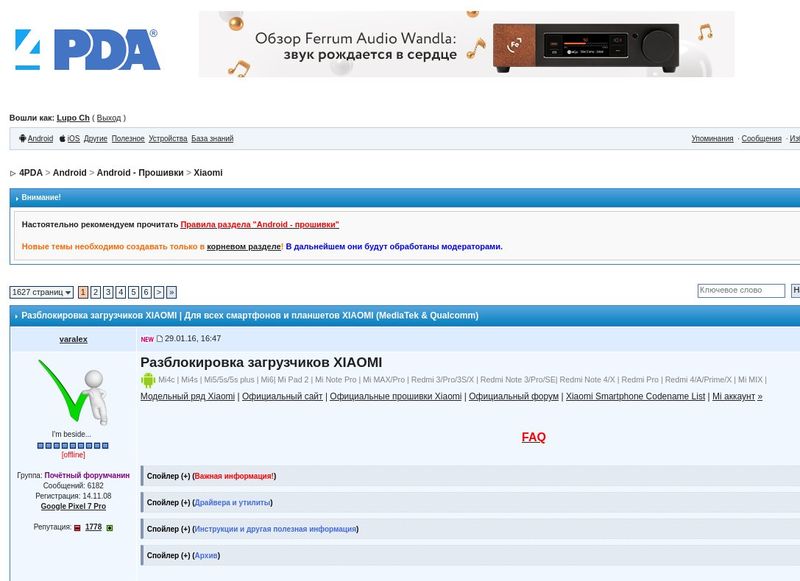
If you understand russian language you can search for a solution in the 4PDA forum thread here: Разблокировка загрузчиков XIAOMI

2.2. You received your Xiaomi 13 Ultra flashed with a MIUI ROM?

If you received your Xiaomi 13 Ultra flashed with a MIUI ROM, that's definitely is a Good Luck! :)

2.4. SWITCH ON USB Debug

The first and one of the MOST Important things you have to do after getting a new phone (OR flashing a new ROM) is to activate the Developer Mode and SWITCH ON USB DebugScreenshot 2024 01 23 13 59 22 698 com.android.settings

You can do all that very easy by doing this simple steps:

2.4.1. Go to Settings / My Device / Detailed info  and click 7 times on MIUI Version.

2.4.1. Go to Settings / Additional Settings / Developer options

Here you have to activate:

USB Debugging - ON

Also in the Developer options menu is a good Idea to activate also this settings: OEM Unlock, Install via USB, USB Debugging (Security settings)

2.5. DO NOT UPGRADE to Hyper OSScreenshot 2024 01 23 14 02 08 002 com.android.updater 01

Here my friend be very, very careful DO NOT make the mistake to UPGRADE by mistake your fancy new phone to the offered system upgrade to the Hyper OS!

OR ... YES you guess it right!

You will have a lot of problems if you later decide to unlock your bootloader .. YES! :)

Also make sure that you have disabled the System Auto Upgrade option!

2.6.Bootloader Unlock wait period

If you decide to unlock the bootloader by yourself be aware that there is a pretty real possibility that you will have to WAIT LONGER than you expect!

Yes! ... :(IMG 20240119 205145 01

The most common wait period for a bootloader unlock is one week (168 hours) ...

BUT do not forget that for some UNKNOWN reason you can receive a much LONGER wait period!

For example a MONTH!

3 days ago when I started my unlock procedure I received ... 594 hours!

Yes, you read it absolutely correct, I have to wait 25 days for the bootloader unlock! FACT! :(

2.7. Do not lock the bootloader of a CN based phone flashed with a Global ROM!

OR YOU will BRICK your phone!xiaomi relock brick 20240123 113152

 OK, this point probably is the most important in this short Xiaomi 13 Ultra CN HOWTO!

Do not ever forget that you are a owner of a hardware produced for China region!

This fact do not changes despite the fact that you are already unlocked your boot loader and you are using a Global ROM.

If you flash a CN based hardware with a Global ROM AND for some unknown reason you decide to lock your bootloader you will BRICK your phone!

If you need to lock back your CN based phone FIRST flash it with a Chinese ROM and after that lock your bootloader.xiaomi unlock 4PDA 20240123 113152

The problem is the same with the opposite case:

if you are a owner of a Global Xiaomi hardware which is flashed with a CN ROM and after that if you lock your phone you will brick it.

UNBRICK your Xiaomi phone

If you have such a very serious problem don't panic!

There are some solutions to fix this problem, but they are NOT FREE of charge.

But, this services are NOT too expensive also! :)

Many of this services cost around 5 / 15 / 25 EUR.

Make a research in Google read the XDA and 4PDA,  xiaomi.eu  forums, ask the community for help and advice!

Here is a paid service which can help you to unbrick your Xiaomi bricked device if you stuck in the problem described above:

Xiaomi Auth Flash

According to the description of this service you will receive a fix if you experience this problems:xiaomi unlock service pictures 20240123 113152

Xiaomi Auth Flash Supported Devices and Services:

- All Xiaomi, Redmi and Poco devices firmware downgrade service from HyperOS to MIUI.
- All Xiaomi Phones and Tablets based on Qualcomm and Mediatek devices that require authorised flashing.
- All Xiaomi Server Based Instant Bootloader Unlock Service [Server Offline]

Below I'm posting also a link to another paid service for EDL mode Flash and also a link to the video instructions in Russian for this service:

Xiaomi Pro Tool

Xiaomi Pro Tool video in RU

Xiaomi Pro Tool video in English: MI 11 LITE 5G UnbrickXiaomi Pro Tool video in English: MI 11 LITE 5G Unbrickxiaomi tool pro 01 2024 01 23 14 21

Another paid service for unbricking Xiaomi phone:

NC PHONE - All Services Mobiles

Also it's a good Idea to search for the EDL mode Flash for your phone.

But in order to flash your bricked device in EDL mode you will have to find a Xiaomi authorized person with Mi Account of level 2 who can FLASH ROM in EDL mode.

Unbrick your Xiaomi phone if u just stuck in bootloop

I'm posting few links to some other HOWTOs how to unbrick your Xiaomi phone when in boot loop or you have got in to the "System Has Been Destroyed" Bootloop Error?

Bricked AND locked Mi 11 Ultra

System Has Been Destroyed" Bootloop Error

YouTube Podcast. The New Frontier of Podcasting

YouTube Podcast. The New Frontier of Podcasting

Test, Review, HOWTO 03 November 2023 6 minutes read
  • podcast
  • lupo's podcast

YouTube's foray into podcasting is not just a new feature; it's a whole new realm for creators.

With its vast user base, YouTube is an ideal platform for podcasters to amplify their voice and reach a global audience.

YouTube is not just expanding its content repertoire with podcasting; it's redefining the podcasting landscape by integrating it into its video-centric platform.

Here’s what makes podcasting on YouTube a game-changer:

  • Integrated Global Platform: YouTube's 2 billion-strong audience is a diverse mix of individuals who are already consuming video content. By adding podcasts to the mix, creators can tap into an existing community that's ripe for audio-visual storytelling.
  • Enhanced Discoverability: Podcasts on YouTube benefit from the platform's sophisticated search and discovery algorithms, which can increase visibility beyond traditional podcast platforms.

YouTube's data suggests that podcasts with video elements outperform audio-only content. This is a nod to the platform's visual-centric audience who engage more with content that has a face or story to tell visually.

Here’s what you can expect:

  • Video Podcasts: Podcasts with hosts appearing on camera have shown to receive double the views compared to those with static images.
  • Automated Video Creation: For RSS feed submissions, YouTube will automatically generate a video using the provided MP3 and image, crafting a seamless audiovisual experience without extra effort from the creator.
MERINO equipment: Podcast with 30 km/h

MERINO equipment: Podcast with 30 km/h

Test, Review, HOWTO 07 November 2023 16 minutes read
  • podcast
  • lupo's podcast
  • review
  • Downshifting
  • DALLE

Now is the perfect time to talk about MERINO!

The main topic of this podcast and Blog post is  the equipment made of MERINO

Autumn has arrived, and soon winter will come... the astronomical and quite cold winter!

Personally, I'm a fan of riding outdoors 365 days a year, and I really enjoy it.

But to make cycling in a few degrees below zero enjoyable, good equipment is of utmost importance!

And now is the perfect time to talk about MERINO!

As I prepared for this podcast today, I took out most of my cycling gear.

Garmin Edge 540, 840 and 1040 - Cool features from the Interface

Garmin Edge 540, 840 and 1040 - Cool features from the Interface

Test, Review, HOWTO 02 November 2023 7 minutes read
  • garmin
  • garmin edge
  • gps garmin
  • connect garmin
  • garmin edge 530
  • garmin edge 1040
  • garmin edge 540
  • garmin edge 840
  • podcast
  • lupo's podcast

Several months already has passed unnoticed with the new Garmin Edge 540!

For a few months now, my faithful old Garmin Edge 530 Mando is navigating from the handlebar of its new owner.

In this review, I will describe in detail what different and new features are present in the interface of Garmin Edge 540, 840, and Edge 1040 - the cool new things that are missing in the interface of Edge 530, Edge 830, and Edge 1030 Plus.

This article is NOT another list, dry statistics, and enumeration of the news, but I will share what personally excites me the most and what new things I use daily while riding. :)

ClimbPro Free Climbing - a cool tool for climbs! :)

I wrote extensively about the news in the new ClimbPro two weeks ago.

Garmin Edge 540 vs 530 vs 130 review after 8 months

Garmin Edge 540 vs 530 vs 130 review after 8 months

Test, Review, HOWTO 04 November 2023 13 minutes read
  • garmin
  • garmin edge
  • gps garmin
  • connect garmin
  • garmin edge 530
  • garmin edge 1040
  • garmin edge 540
  • garmin edge 840
  • garmin edge 130
  • podcast
  • lupo's podcast
  • garmin varia

Unnoticed, another 8 months of cycling have passed, and we are already so close to the new winter of 2023.

The only difference from the previous 8 months of cycling is that my old Garmin Edge 530 - Mando has a new owner, and during the last 8 months I am actively testing the new Garmin Edge 540 with the code name Bo.

The Nikname "Bo" is short for Bo Katan Kryze.

In short, because while I remember the full name, my efforts to pronounce Bo Katan Kryze correctly and faithfully are overwhelming. :)

The tradition is that my Garmin bicycle computers receive a Nickname related to a character from the series "The Mandalorian"

This tradition goes many centuries back to the battle against the Empire for the Force. :)

It started from my second Garmin bicycle computer model: Garmin Edge 130 with the Nickname Grogu.

You can read a detailed review of Garmin Edge 130 Grogu  in the publication in the Blog named: Garmin Edge 130 - Grogu Review by a randonneur - Part One

TPU inner bicycle tires test and review

TPU inner bicycle tires test and review

Test, Review, HOWTO 29 October 2023 16 minutes read
  • podcast
  • lupo's podcast
  • review

For TPU inner bicycle tires, I found out a little over few months ago.

It happened entirely by chance - I read about TPU tires from a comment by Ivan - a fellow cyclist, under a post in one of the cycling groups on Facebook.

I had just received my new set of Continental GP 5000 tires, and the post on Facebook was precisely about a topic that is extremely important for every cyclist - tires. :)

The colleague had posted a picture of two tiny, thin, green inner tubes and explained that he had recently gotten them and hadn't even tested them yet.

Later, another fellow cyclist, Dimitar, strongly recommended these new TPU tires to me in the Facebook chat. He said he had been using them for a year and a half:

Page 1 of 3

  • 1
  • 2
  • 3
© 2026 All rights reserved
  • Начало
    • Тестове, Ревю и HOWTO
    • Бревети, Колоездене, Пътеписи
    • Дауншифтинг
    • Места на силата
  • Подкаст
    • Подкаст
      • Изкуствен Интелект
    • Загадъчни Истории
  • Контакти